An AI video editor can mean two different things: software that helps edit existing footage, or a generator that creates new footage from a prompt. We built both workflows, but as separate tools. The video editor is a browser-based, multi-track timeline for arranging and finishing clips. AI Studio generates short clips through connected video providers. Knowing which job each tool does makes it easier to choose a workflow and set realistic expectations.
In our editor, you can trim and split video, arrange audio and subtitle tracks, add effects, record footage, generate captions, and render an MP4 in your browser. Selected AI-assisted editing tools run on your device. For generated footage, AI Studio sends a prompt and optional reference frames through a provider you connect. Those are complementary capabilities, not one button that automatically turns a brief into a finished campaign.
One more note on our browser-based creative workspace: Dika Studio is still in pre-launch. We are inviting teams in stages, and the features switched on can differ between accounts during rollout. In this guide we say clearly what is live and what is still coming.
Availability note: The editing and AI-generation steps below match the features in our documentation at docs.dika.design. Dika Studio is in pre-launch, so access, providers, and enabled surfaces can depend on your rollout group.
What “AI video editor” means in practice
The phrase “AI video editor” covers a broad category. Some products focus on generating clips from text. Others help with specific editing tasks, such as removing a background, cleaning up noisy audio, tracking a face, or creating subtitles. A timeline editor still matters because generated footage and camera footage usually need decisions about sequence, timing, sound, captions, and export.
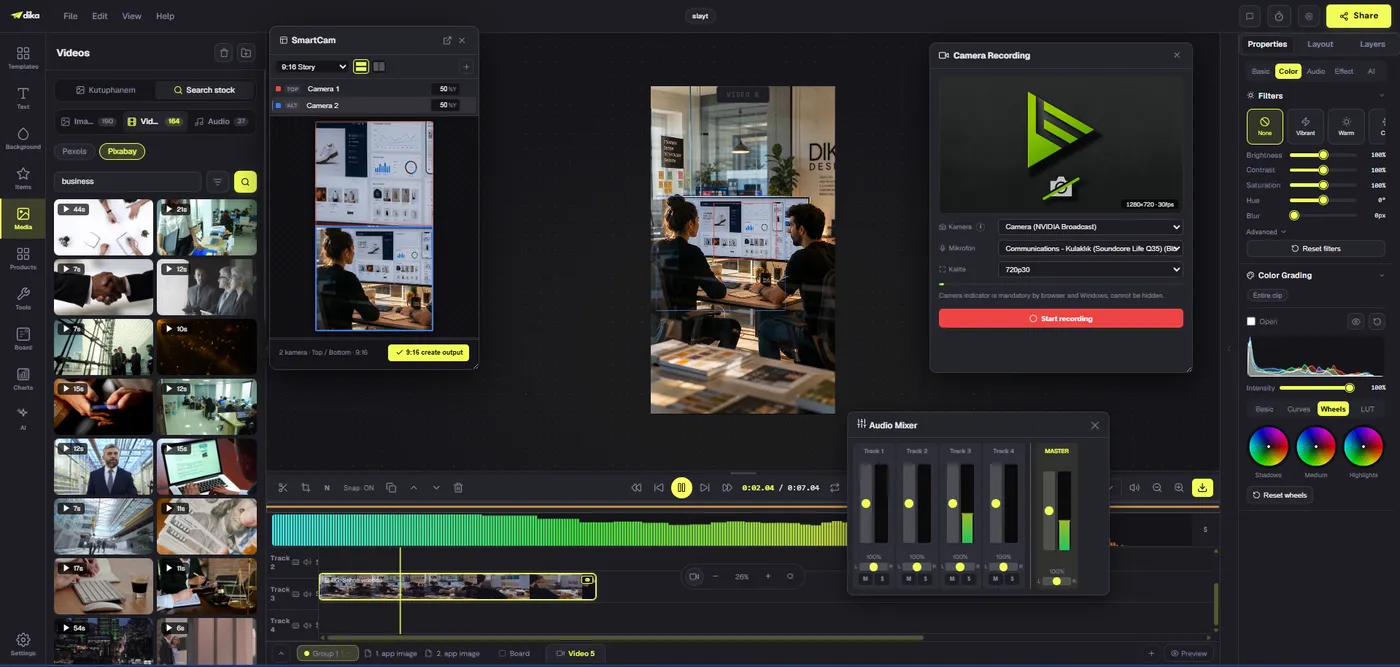
We built our video editor around that timeline work. It runs in the browser and treats a video as one part of a larger project. Video, audio, and subtitle clips sit on separate tracks. The preview combines overlapping clips, while the inspector holds settings for the selected clip. Text, images, and shapes added on the preview can become timed overlay clips, so titles and graphic elements can be positioned and trimmed alongside footage.
AI supports particular steps inside that editing process. Background removal, denoise, face tracking, and automatic subtitles are described as on-device features using models loaded into the browser. They assist with footage already being edited; they are not the same as asking a remote video model to invent a new scene. For exact features and workflows, see the video editor overview.
Editing, generation, and pre-launch Studio: three different jobs
These terms often appear together in product descriptions, but they describe different stages. The comparison below shows what we have built; during pre-launch, not every feature is switched on for every account.
| Surface | Main job | What you get today |
|---|---|---|
| Video editor | Edit and finish footage | Multi-track timeline, effects, audio, subtitles, on-device AI assists, and MP4 export in Dika Studio. |
| AI Studio video mode | Generate a short clip | Prompt-based generation with optional start or end frames, using supported connected providers. |
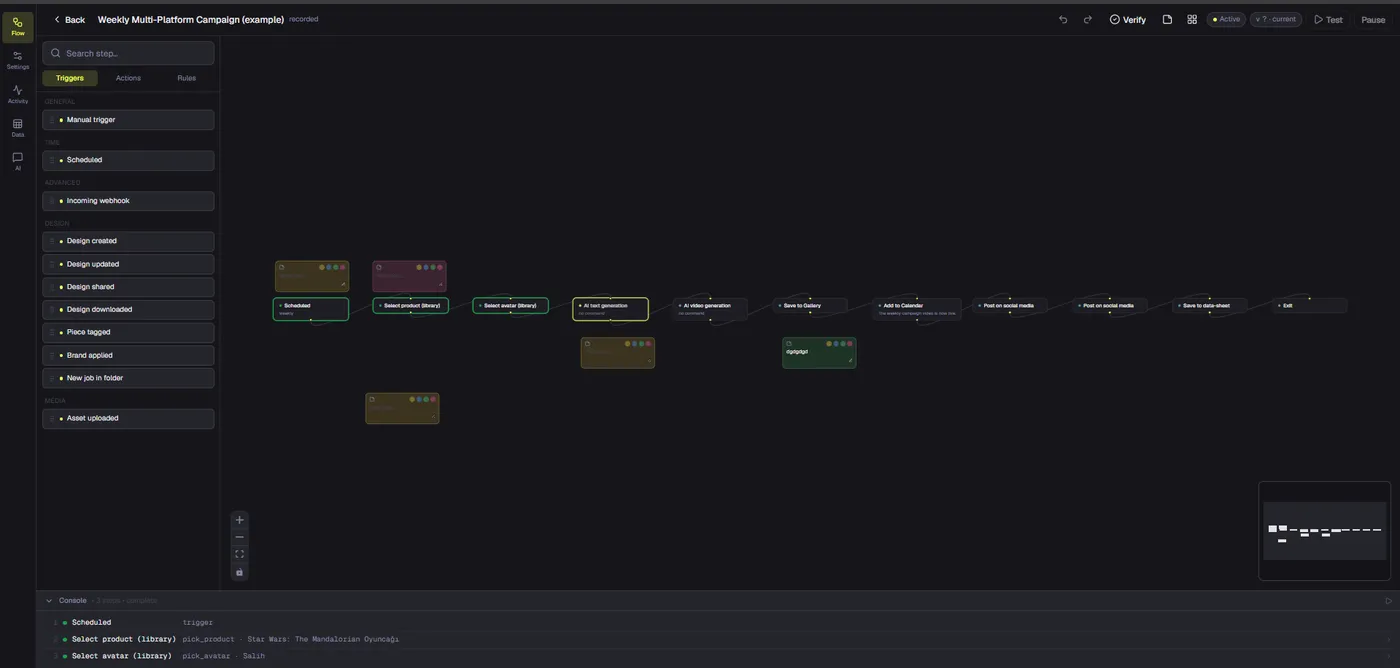
| Marketing Studio | Prepare ad-style generations | Modes, recipes, saved product and avatar references, optional script drafting, then handoff to video generation. |
| Dika Studio | Connect creative work in a broader production system | In pre-launch. Access and the features switched on depend on your rollout group. |
In our creative production workflow, the editor and generator can be used together, but their controls and costs differ. Editing footage in the timeline does not require using a video-generation model. Generating a clip does require an eligible provider and may incur that provider’s charge. The video-generation guide explains provider and frame support; the plans and limits guide explains how AI usage is billed.
What you can do in our video editor
Arrange clips across tracks
Start with video, audio, and subtitle tracks. Drag media onto the timeline or use the media browser to bring in files already imported into the project. Trim a clip by dragging an edge; split it at the playhead; move it between tracks; and use snapping to line clip edges up. A playhead lets you scrub through the edit, while markers can flag moments to revisit.
Three edit modes help control what happens after a trim or delete. Normal mode can leave a gap. Ripple mode shifts later clips to close the gap. Insert mode pushes later clips out of the way when new material is added. Those choices matter in practice: a rough cut often benefits from ripple editing, while normal mode can be useful when timing and gaps are intentional. The timeline and tracks guide covers the modes and controls.
Build a layered composition
Separate tracks make it easier to manage a main shot, a voiceover, music, and captions independently. You can mute or solo audio tracks, adjust their levels, and move clips without flattening the whole composition into one file. On the preview canvas, text, images, and shapes can become overlay clips on the timeline. That gives titles and graphic elements their own timing rather than baking them into the video at the start.
This structure is useful for common deliverables: a talking-head video with a lower third, a product clip with a separate music bed, or a short social edit with timed captions. Keep related elements separate while the edit is changing. Once timing is stable, transitions and color treatment are easier to apply consistently.
Refine color, transitions, and effects
Choose a clip and work from the inspector to adjust its transform, filters, speed, transitions, or color grading. The effects include transitions, grading presets and levels, LUTs, chroma key, style filters, and blend modes. AI background removal can help isolate a subject without a green screen. These tools modify or style selected clips; they do not replace the editorial decisions about which shots belong in the sequence.
For a cleaner first pass, finish the rough cut before spending time on effects. Establish the order and duration of clips, then choose transitions and a consistent color direction. This keeps a visual treatment from hiding pacing problems. Our effects, transitions, and color guide lists every control.
Mix sound and create subtitles
The audio mixer provides controls for individual tracks and the master output. You can adjust volume, pan, mute, and solo; audio clips also have volume and equalization controls. Presets can reshape a clip’s sound, and AI denoise can reduce background noise. If you need new material, the editor can record screen, camera, or microphone footage directly onto a track.
Automatic subtitles turn speech into timed cues on a subtitle track. You can edit those cues like other timeline content or import an existing subtitle file. Keeping captions on their own track lets you adjust timing, revise wording, or omit them from a particular export without changing the underlying video. See audio, recording, and subtitles for details.
Use on-device AI assists
In our video editor, AI-assisted background removal, denoise, face tracking, and auto-subtitle tools run on-device using models loaded into the browser. This can make them useful during editing without sending footage away for the preview or render. The first time you use one of these features in a session, the browser needs to fetch its model; after loading, it is cached for the rest of that session.
These are focused assists, not an autonomous editor that chooses a narrative, selects the best takes, or approves the final cut for you. You remain responsible for the sequence and the result. Face tracking can create position and scale keyframes to help keep a subject framed. Automatic subtitles create a starting point that should still be checked for names, technical terms, punctuation, and timing.
Export a finished video
Export applies to the video part you are editing, not to every page, scene, and slide in the wider project. Today, MP4 (H.264) is the format that renders end to end. The export dialog’s other options are not yet fully wired up, so use MP4 when you need a finished file. Resolution, aspect ratio, frame rate, quality, audio inclusion, and an optional timeline range are available in the export workflow.
Rendering happens in the browser and depends on browser support for the required encoding APIs. If the browser cannot provide an encoder, the editor reports that rather than silently producing a broken export. The project model also matters: a video is one part alongside pages, scenes, and slide decks. There is no single rendered export that can represent every different part type at once.
A practical workflow: from footage to a finished clip
A dependable edit in our creative workspace starts with a clear goal. Decide where the video will be watched and what the viewer should understand or do. A vertical product demonstration, a landscape interview, and a square announcement may use the same source material, but they need different framing and pacing. Choose the target format before polishing details.
- Create or open a video part.
Open a video part in the project or add one from the page tabs. The editor docks the timeline at the bottom and uses the center canvas as the preview. Our project model keeps a video alongside other creative parts instead of treating the entire project as one video file. Learn more in Projects and parts.
- Import footage or record a take.
Drag video, audio, or image files onto the timeline, or use the media browser to find imported assets. You can also record screen, camera, or microphone footage directly to a track. Give the main footage, narration, and music their own tracks if you expect to adjust them separately.
- Make a rough cut.
Trim starts and ends, split around unwanted moments, and put clips in the intended order. Use ripple mode when removing a section should close the gap. Add markers for decisions you want to revisit. Keep the first pass focused on sequence and pacing rather than transitions.
- Set the visual treatment.
Adjust framing and color, then add transitions where they support the story. Use chroma key or AI background removal only when the shot calls for it. If text or a logo must remain visible, place it as a timed overlay and review its timing against the footage.
- Finish sound and captions.
Balance dialogue, narration, and music across tracks. Apply denoise if background noise distracts from the speaker. Generate subtitles, then review the transcript and cue timing. Captions are part of the viewer experience, so correct transcription errors before export rather than relying on the first automated pass.
- Export and review.
Choose MP4 (H.264), set dimensions and frame rate for the destination, and decide whether to include audio. Watch the exported file from beginning to end. Check for clipped words, unexpected gaps, unreadable captions, and transitions that feel too fast or slow.
This process works for original footage and generated clips. The difference is where the source material comes from. If the footage already exists, begin in the timeline. If you need a new generated shot, use AI Studio or Marketing Studio with an eligible provider, then bring the resulting clip into the project timeline. Our marketing-video tutorial walks through this combined path: generate a first draft, then trim, caption, and export it in the editor.
When to generate footage instead of editing it
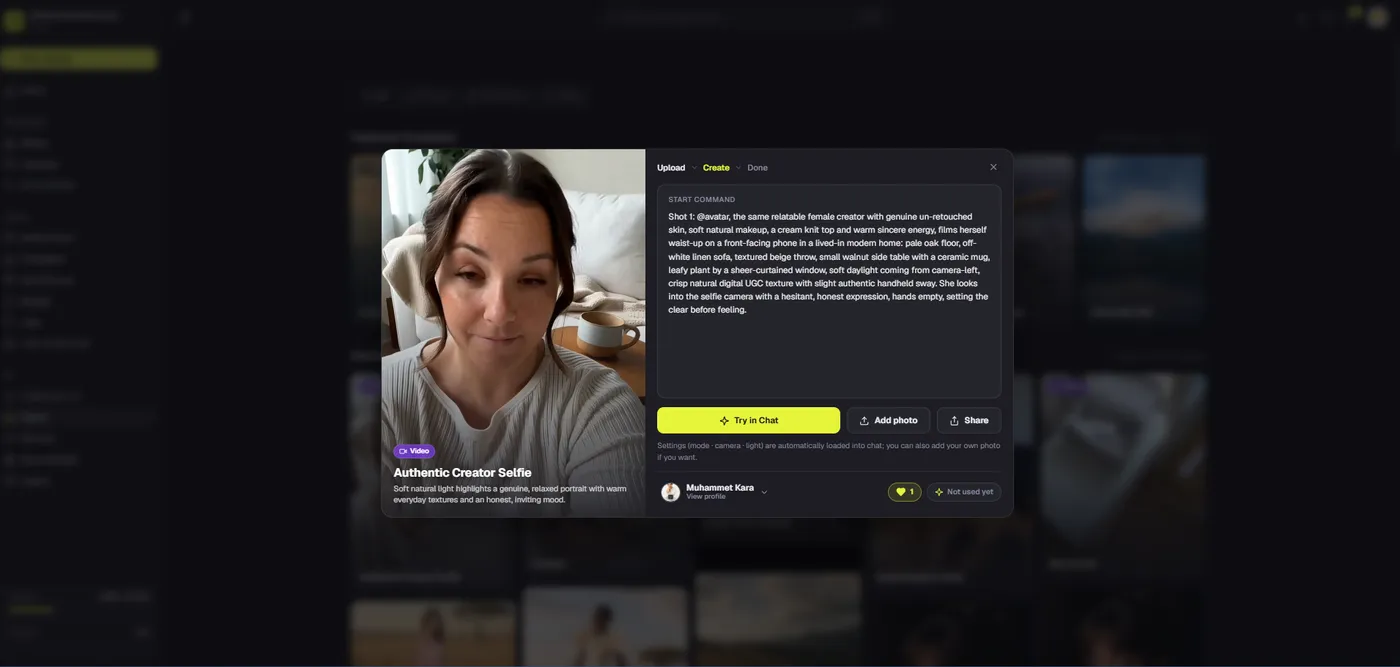
Prompt-based generation is useful when you need a visual starting point, a short product shot, or a scene that would be difficult to capture with a camera. In AI Studio’s Video mode, write a prompt, choose aspect ratio, resolution, and duration, and optionally provide a start frame. Qwen supports both start and end frames; fal.ai and BytePlus use a start frame. Support depends on the selected provider and model.
The composer offers duration choices of five or ten seconds, while individual models may accept or clamp duration differently. That makes generated footage a source for an edit, not a promise of a finished long-form video. A short clip can become one shot in a larger timeline. You can then place it beside recorded footage, add titles or voiceover, and control its timing in the editor.
Generation also has a different cost model from timeline editing. Today you connect your own provider key, and the provider bills for its model and duration. The composer shows a cost preview for some providers; other providers may require checking their pricing separately. Rates and model availability can change, so check the estimate and provider terms before generating. For a guided advertising workflow, Marketing Studio adds modes, recipes, and saved avatar or product references before handing the prompt to video generation.
What local processing does—and does not—mean
Privacy claims need to match the operation. In our video editor, the AI-assisted editing steps above and the final preview and rendering run on your device; footage is not uploaded for preview or rendering. The browser downloads the required models the first time you use them in a session. That applies to the editing and rendering path.
AI video generation is a separate provider-backed operation. It uses a connected video provider and can use a prompt plus selected reference frames. Do not extend the editor’s local-render statement into a blanket claim that every AI operation stays on-device. Before generating, review the selected provider’s terms and understand which prompt or reference material you are submitting. Our AI Studio keeps provider keys encrypted server-side and does not return them to the browser; key handling and provider data handling are different questions.
For teams publishing a product workflow, this distinction is more than a technical footnote. A useful privacy explanation says which steps process local footage, which steps call an external model, and what settings or provider policies apply. Avoid phrases such as “all AI is private” unless product documentation supports that exact scope.
What is live today and what is still in pre-launch
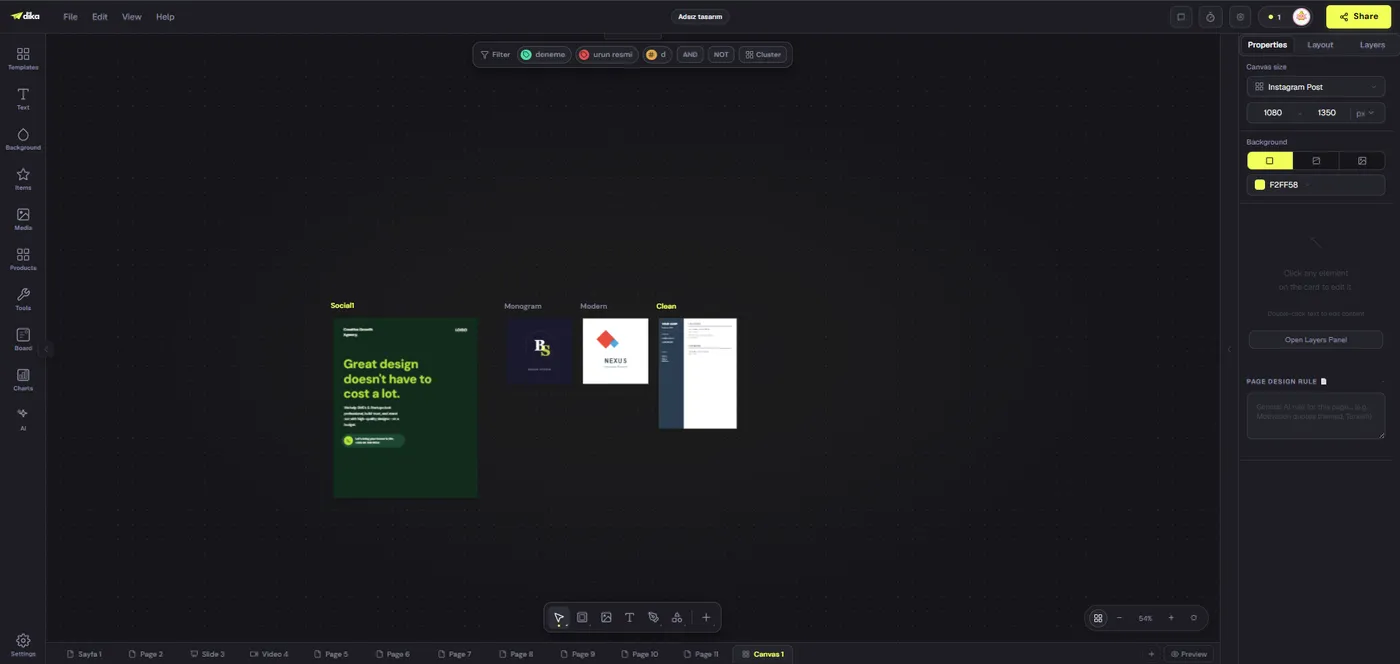
Today Dika Studio runs in the browser with a video editor, AI Studio, and Marketing Studio. Beyond that, we are building a broader production workspace with team collaboration, managed generation, scene-based workflows, and connected delivery. Dika Studio is in pre-launch: we invite teams from our waitlist in small groups, and what is switched on can vary during rollout. We present these as our pre-launch scope, not as features every account already has.
Some limits are worth knowing. Today you use your own AI provider key; managed AI credits are planned, not live yet. Team and organization management and a full English interface are also on our roadmap. Our documentation and blog are in English, but parts of the app interface are not yet.
In short: the timeline workflow is the Dika Studio video editor, and the broader team and scene workflows are part of our pre-launch roadmap. If access or provider options matter to you, check our current roadmap and the Dika Studio page before planning around a specific capability.
Who benefits from an AI-assisted video editor?
A timeline editor with focused AI assists can help creators who already have footage but want a smoother route to a clean, publishable cut. A solo marketer can record a demonstration, trim pauses, generate a first subtitle track, reduce room noise, and export an MP4. A small creative team can keep music, voiceover, captions, and footage on separate tracks for easier revisions. A product designer can combine an AI-generated shot with existing graphics and recorded material, then decide exactly when each element appears.
The approach is especially useful when control matters more than one-click automation. You can inspect a cut, adjust an overlay, move a caption, or balance a track rather than accepting a flattened result. AI can speed up discrete tasks, but it does not replace reviewing the content for accuracy, brand fit, rights, and accessibility. The person editing still makes the final decisions.
It may be less suitable when the only requirement is instant, fully automated production of a long video from a single sentence. Our generator focuses on short provider-generated clips, while the editor expects you to assemble and refine timeline content. That division can be an advantage: generate only the shot you need, then control the finished sequence yourself.
Choose the right starting point
Use the timeline when you have footage to cut, sound to balance, captions to correct, or a specific export to deliver. Use AI Studio video mode when you need a new short clip from a prompt or reference frame and are ready to use a connected provider. Use Marketing Studio when an ad-style recipe, product reference, avatar, or generated script would help shape that prompt.
These tools form a practical production path: prepare a concept, generate a shot if needed, edit the sequence, check sound and captions, then export an MP4. They are separate steps with separate limits, not a claim that every video is generated and finished automatically. For broader context, explore our visual workspace and our project-based creative tools. Our documentation covers the editing details, and the Studio page explains pre-launch access and rollout.
When evaluating any AI video editor, ask three questions: what can it generate, what can you edit manually, and where does each step run? In Dika Studio, the answers are distinct. AI Studio generates provider-backed clips; the video editor gives you a multi-track browser timeline with specific on-device AI assists; the broader Dika Studio workspace is in pre-launch and opening in stages. That clarity helps you choose the right tool and plan a workflow that ends with a file you can actually deliver.
Frequently asked questions
1. Is the Dika Studio AI video editor available now?
The browser-based video editor is live in Dika Studio. The wider Studio product is in pre-launch: we invite teams in stages, and the features switched on vary by rollout group.
2. What is the difference between an AI video editor and an AI video generator?
A generator creates footage from a prompt or reference frames. An editor arranges and refines footage on a timeline with cuts, audio, captions, effects, and export controls. We built them as separate but complementary tools.
3. Can Dika generate a video from text?
AI Studio Video mode can generate short clips from prompts using supported providers. Start-frame and end-frame support depends on provider and model.
4. Do I need my own AI provider key?
Today Dika Studio uses your own provider key, and your provider bills for generation. Managed generation is coming during pre-launch and may already be switched on for some accounts.
5. Does video editing upload my footage?
Preview, rendering, and the on-device AI editing steps do not upload your footage. Provider-backed video generation is a separate operation; do not assume the local-render statement covers it.
6. Which AI editing tools are available?
The video editor docs list AI background removal, denoise, face tracking, and automatic subtitles. These assist specific editing tasks; they do not automatically make all editorial decisions.
7. What video export format works today?
Today, MP4 (H.264) is the format that renders end to end. Other formats shown in some references are not fully supported yet.
8. Can I edit an AI-generated clip on the timeline?
Yes. Our marketing-video tutorial shows how to bring a generated clip into the project timeline to trim, caption, and export it.
9. Does Marketing Studio build a complete multi-scene storyboard?
It offers modes and recipes that shape a prompt, optionally draft a script, and hand off to video generation. They do not establish a standalone scene-by-scene storyboard editor.
10. Is Dika Studio’s team collaboration available to every user?
Not for everyone yet. We are opening pre-launch access in groups, and the features switched on can vary. See the Dika Studio page to join the waitlist.